Field Names
Field names are required for every piece of information you want to extract from a document. When defining field names, simply think about the data you want to capture. For example, when extracting data from an invoice, you might start with:- Invoice number
- Invoice date
- Invoice total
- Field names cannot contain spaces.
- If you type a field name with spaces, the system will automatically replace them with underscores.
- Example:
Invoice Number→Invoice_Number
- Example:
Data Types
Data types tell the system how to interpret, format, and structure the extracted information. Choosing the correct data type improves accuracy and enables advanced features such as line items and nested fields. Supported Data Types:List of Fields (Line Items)
List of Fields (Line Items)
The List of Fields data type is used when the same set of information repeats multiple times in a document, such as invoice line items.When you change a field’s data type to List of Fields: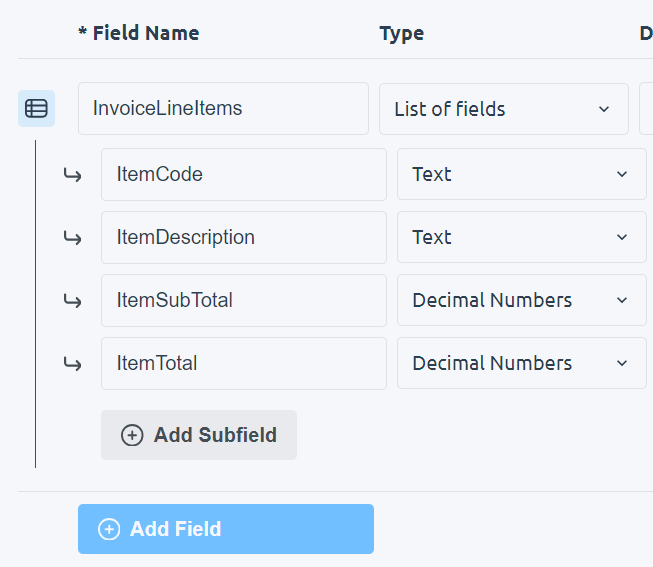
- A first subfield is automatically created
- An Add Subfield button appears
- Item description
- Quantity
- Unit price
- Line total
- A subfield can also be set to List of Fields, allowing line items within line items.
- The system supports up to 2 levels of depth for nested lists.
Section / Group
Section / Group
Sections / Groups allow you to organize related fields under a single parent field.They work similarly to List of Fields, with one key difference: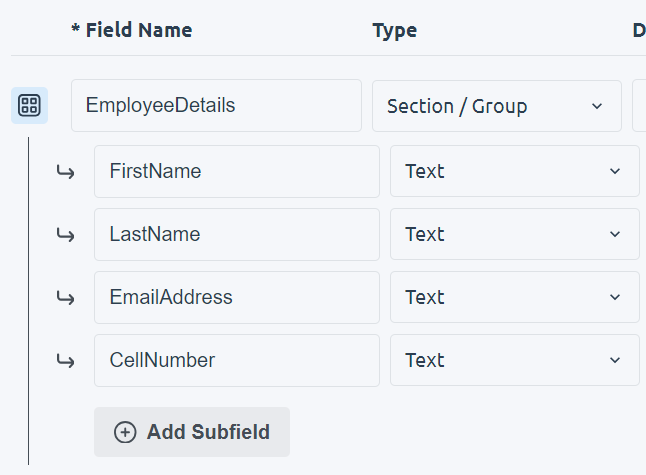
- Subfields in a section do not repeat
- They simply store child fields that logically belong together
- Grouping billing address fields
- Grouping payment details
- Grouping vendor or customer information
- A Section / Group can contain:
- Text fields
- A List of Fields
- Another Section / Group
- You are limited to 2 levels of nesting in total.
Choose from a List
Choose from a List
The Choose from a List data type restricts the extracted value to a predefined set of options. This is effectively an enumeration.Use this when the output should always be one of a known set of values, such as: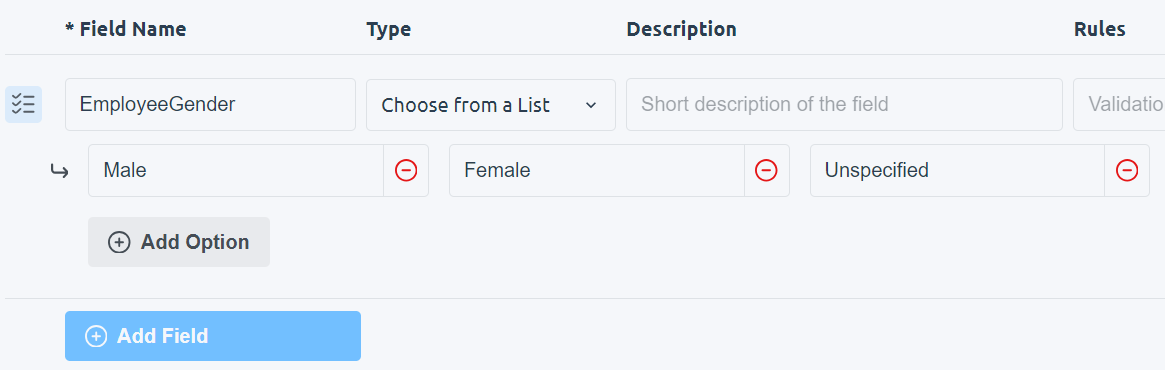
- Payment method:
Credit Card,Bank Transfer,Cash - Document type:
Invoice,Receipt,Purchase Order
Description
The Description field helps the system locate the correct information in the document when it is unclear or poorly labeled. Use the description to explain:- Where the information appears in the document
- What the information looks like
- How it is labeled (or mislabeled)
- Descriptions are optional
- It is recommended to leave this empty unless the system struggles
- Overusing descriptions can reduce flexibility
Rules
Rules describe what the system should do with the extracted information before returning it. While descriptions answer:“Help me find this information”Rules answer:
“What should I do with this information once I find it?”Rules are written in natural language and can be used to:
- Transform values
- Split combined fields
- Normalize formats
- Apply logic (e.g., when to set a boolean value)
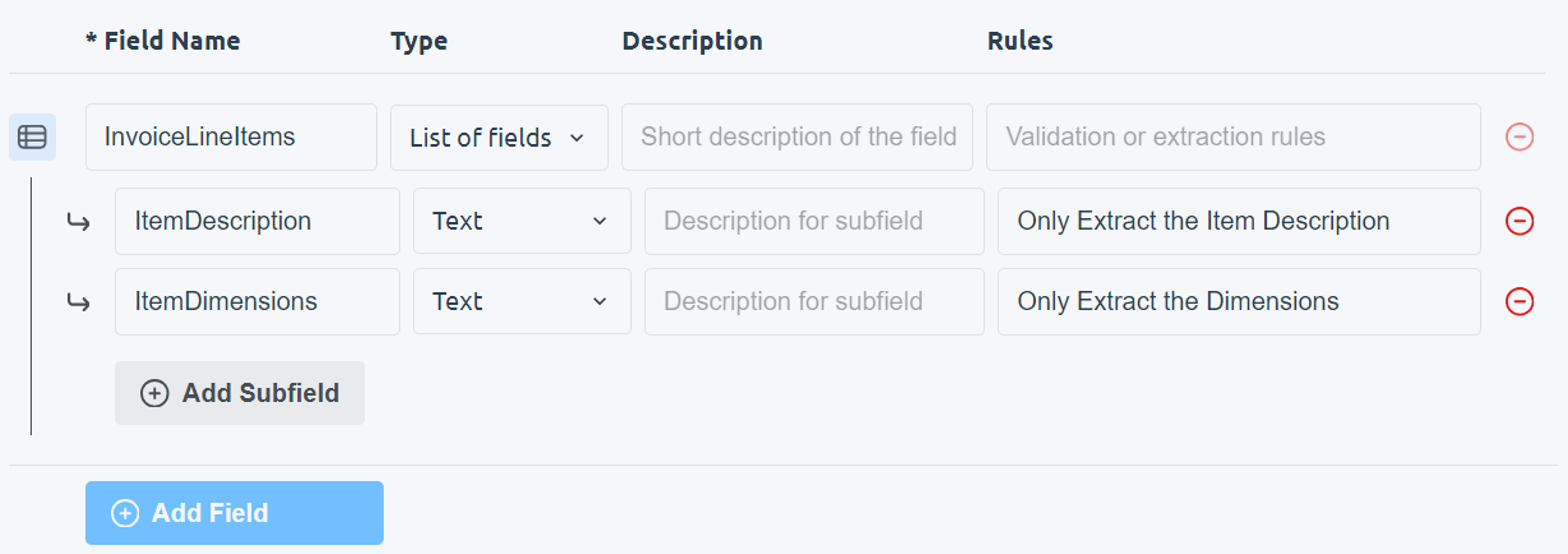
- The item name
- The item dimensions
- Separate the item description from the dimensions
- Store each value in its own field during extraction